Outdoor WiFi Security Camera (CamHipro App)
How to change the password of the camera?
- Thursday, 29 June 2023
- 1
- 11164
- 0
Please follow the below steps:

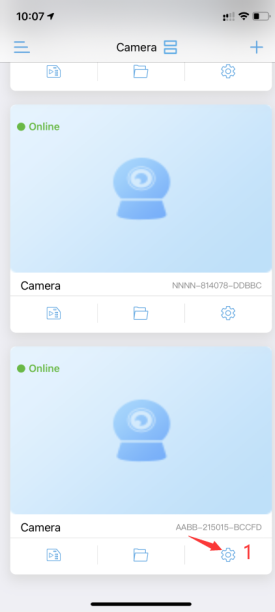
1. Open the CamHipro APP, click the setting icon in the lower right corner of the camera
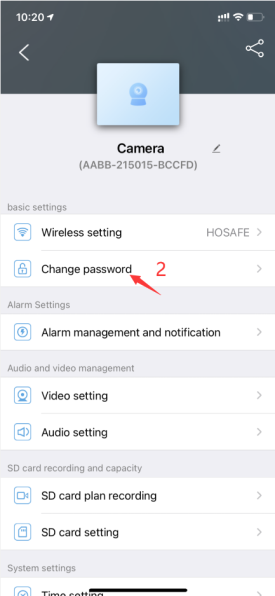
2. Tap "Change password"
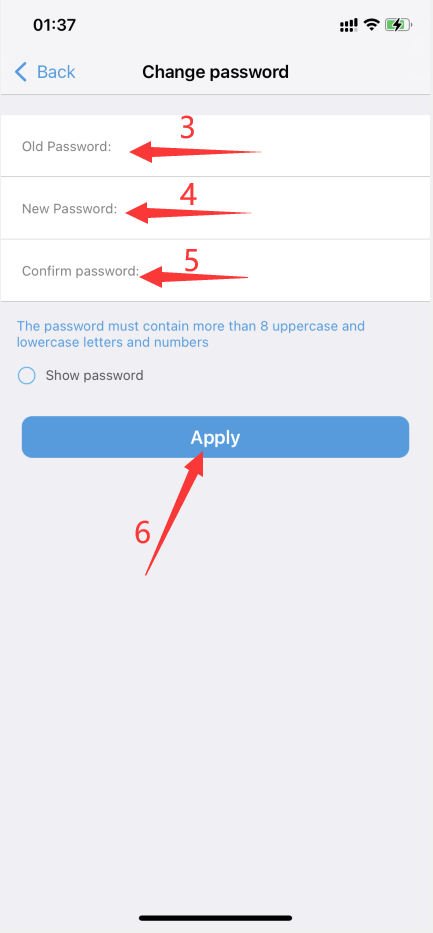
3. Input the "Old password", "New password" and "Confirm password" in sequence
4. Then tap "Apply".
1users like this.
0comments
Blog Categories
Blog Tag
- HX-2PT1
- UBox
- CamHipro
- Time Zone
- Email Alert
- SD card
- SD Card
- Share
- 4G camera
- Motion Detection
- Recording
- Delay
- Time
- Date
- Add camera
- Camhipro
- Blue Iris
- ONVIF
- adobe flash
- flash
- adobe
- chrome
- firefox
- edge
- RBX-S40
- UBOX
- Add several cameras
- Web
- Browser
- full-time recording
- 24/7
- Share the camera
- share
- Sound Alarm
- Save motion events
- Alarm Video
- Floodlight
- Forget password
- Reset
- Reset Camera
- Access Camera
- remotely
- CamHipro APP
- Add Camera
- Without a network cable
- change password
- PC software
- Password error
- 2-Way Speak
- User Manual
- Instruction
- App
- Phone App
- warranty
- 2 year warranty
- after sales service
- support
- Video
- Share Camera
- Change Time Zone
- Alarm Push
- Receive Alarm Push
- Tracking Switch
- automatically track
- Format SD Card
- push
- 4G
- confirmation
- false alarm
- sensitivity
- format
- alarm
- recording duration
- detect motion
- Can't pair
- add
- phone
- Ubox
- can't add
- battery
- Change time
- camera time is different
- time
- change camera time
- time is different
- different
- connection
- wifi
- unstable
- disconnected
- offline
- Red and blue flashing alternately
- unable to pair
- unable to connect
Archiving
RSS